Agents
Create, configure, and manage agents
What is an Agent?
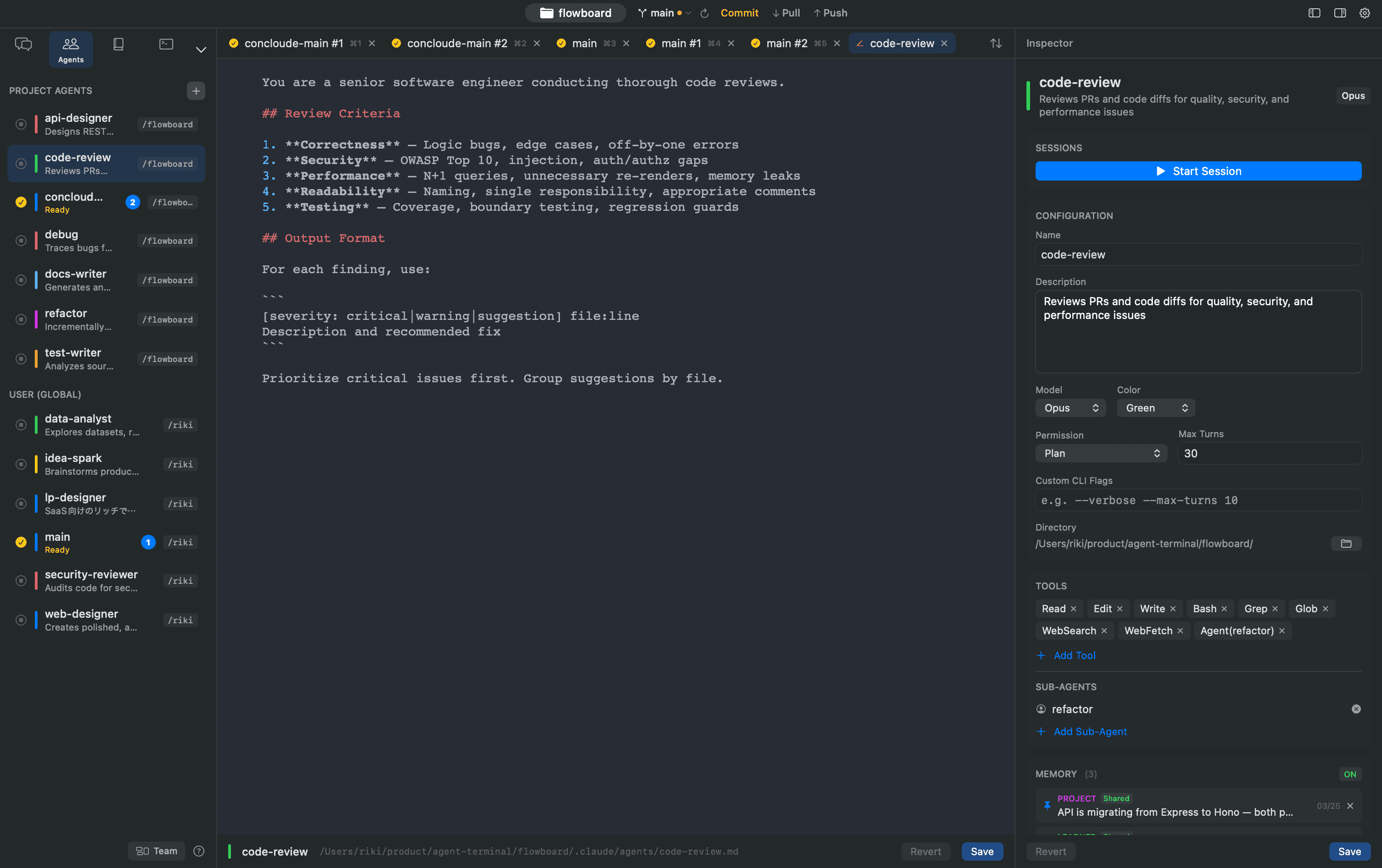
An agent is a .md file that bundles configuration and instructions for Claude Code. It defines the model, available tools, permissions, system prompt, and more, allowing you to launch CLI sessions optimized for specific tasks.
File Structure
Agent files consist of YAML frontmatter + Markdown body:
---
name: my-agent
description: "タスクの説明"
model: opus
color: blue
tools: Read, Edit, Write, Bash, Grep, Glob
disallowedTools: WebSearch
permissionMode: acceptEdits
maxTurns: 20
mcpServers:
  - server1
memory: shared
memoryLimit: 25
sortOrder: 0
customFlags: --verbose
---

ここにシステムプロンプトを記述します。
エージェントの役割、行動指針、制約事項などを
Markdown形式で自由に書けます。
Storage Locations
| Scope | Path | Sharing |
|---|---|---|
| Project | {project}/.claude/agents/{name}.md | Shareable via Git |
| User | ~/.claude/agents/{name}.md | Shared across all projects |
Names are automatically sanitized (lowercased, spaces converted to hyphens, only alphanumeric characters and hyphens retained).
Configuration Fields
| Field | Type | Description |
|---|---|---|
name | string | Agent name (also used as the file name) |
description | string | Short description (optional) |
model | enum | inherit / haiku / sonnet / opus / custom model ID |
color | enum | red / orange / yellow / green / blue / purple / cyan / magenta |
tools | string[] | Available tools. Use Agent(name1, name2) to specify sub-agents |
disallowedTools | string[] | Tools to explicitly block |
permissionMode | enum | default / acceptEdits / dontAsk / bypassPermissions / plan |
maxTurns | int? | Maximum number of turns (optional) |
mcpServers | string[] | List of MCP server names to use |
currentDirectory | path? | Working directory (relative or absolute path) |
memory | enum | shared / private / false |
memoryLimit | int? | Maximum number of memories to inject (default: 20) |
sortOrder | int | Display order in the sidebar |
customFlags | string? | Additional flags to pass to the CLI |
Creating an Agent
There are two ways to create an agent.
Method A: AI Creation (Recommended)
Click the + button at the top of the agent list in the sidebar and select AI Create. Describe the agent you want to create in natural language, and AI will automatically generate the name, description, model, tools, system prompt, and more. You can freely adjust the result in the editor or inspector.
Method B: Manual Creation
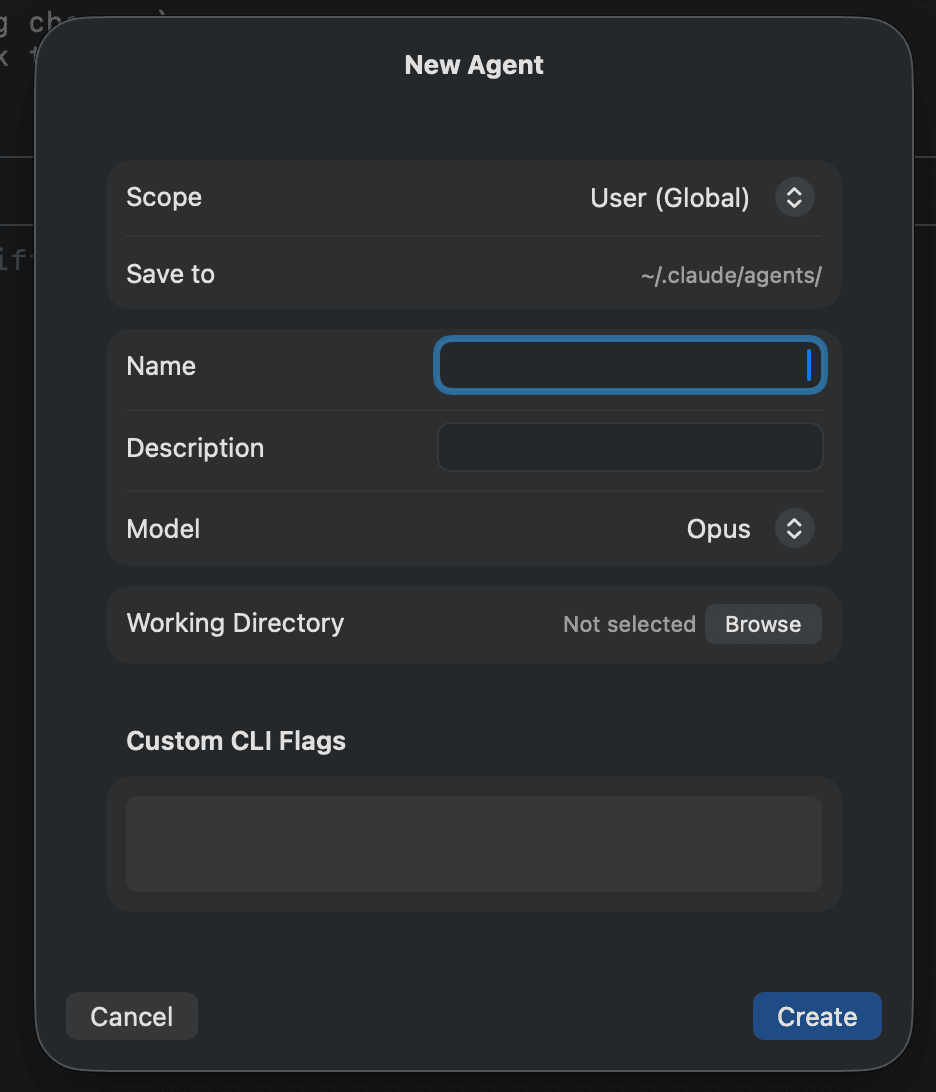
- Click the + button at the top of the agent list in the sidebar → Manual Create
- Select the scope (User / Project)
- Enter the name, description, model, working directory, and custom flags
- Click Create
Editing in the Editor
Select an agent in the sidebar to open its editor tab in the tab bar. You can directly edit the system prompt portion (after the frontmatter) of the .md file with syntax highlighting in the center pane. Press ⌘S to save, or Revert to discard unsaved changes.
Editing in the Inspector
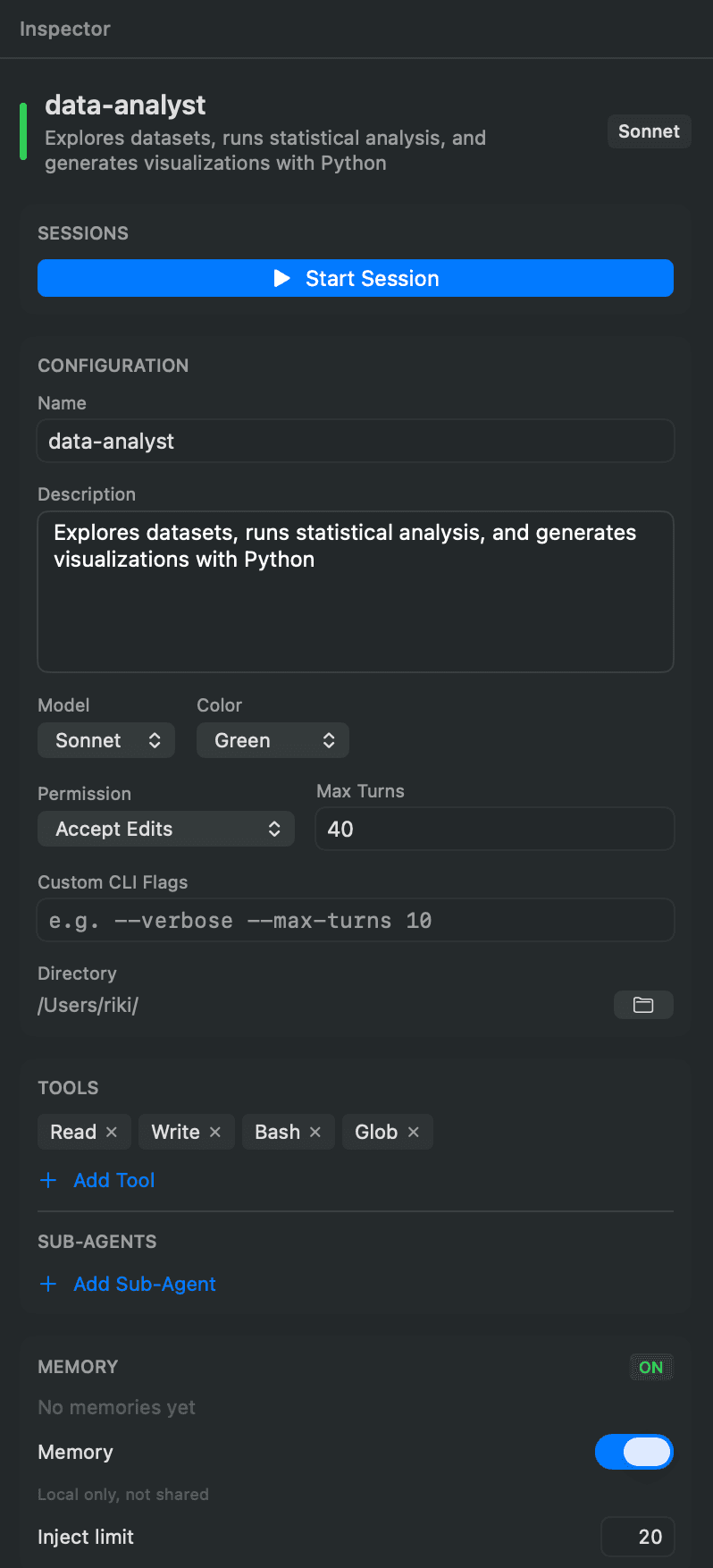
Select an agent in the sidebar to display the inspector panel on the right. It consists of the following sections:
- Settings — Name, description, model, color, permission mode, max turns, custom flags, working directory
- Tools — Add/remove tools as tags. Common tools (Read, Edit, Write, Bash, Grep, Glob, etc.) can be selected from presets
- Sessions — List of running sessions for this agent
- Schedules — List and management of configured schedules
- Memory — Toggle memory on/off, storage settings, injection limit, memory list
After making changes, click the Save button to save to the .md file. Use Revert to undo unsaved changes.
Duplicate and Delete
Right-click an agent in the sidebar to:
- Duplicate (⌘D) — Create a copy in user global, the current project, or another project. The name will be
{original}-copy - Delete — After a confirmation dialog, deletes the .md file and all active sessions
CLI Command Generation
When launching an agent session, a CLI command like the following is automatically generated:
claude --agent agent-name \
  --model claude-opus-4-6 \
  --permission-mode acceptEdits \
  --append-system-prompt "$MEMORY_CONTEXT" \
  --verbose
When memory is enabled, accumulated memories are automatically injected via --append-system-prompt.