Projects & Git
Project management and Git integration
Managing Projects
In Conclawd, you can register multiple projects (directories) and switch between them. Agents, skills, and schedules are managed per project.
Project Selector
The project selector at the top of the sidebar lets you switch between the following:
- Home — App home screen
- All Projects — Cross-project view
- Each project name — Switch to an individual project
- Open Project... — Add a new directory via file picker
Behavior When Selecting a Project
When you select a project:
- Project-scoped agents are loaded from
.claude/agents/under that directory - Project-scoped skills are loaded from
.claude/skills/ - Schedules are loaded from
.claude/schedules.json - The file tree displays the project's directory structure
- For Git repositories, the branch selector becomes available
Git Branch Management
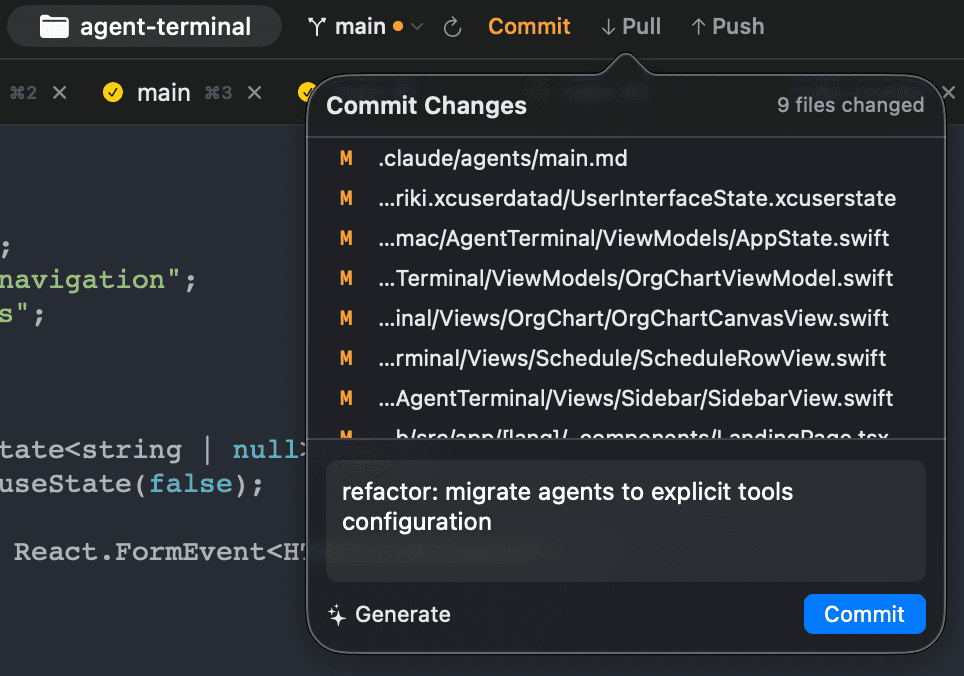
The branch selector on the right side of the top bar lets you perform Git branch operations.
Branch Display
- Current branch name — Displayed in the top bar
- Ahead / behind count — Difference from remote (↑N ↓N)
- Uncommitted changes — Orange dot indicator
Branch Operations
In the branch selector popover:
- Local branch list — Click to switch. The current branch has a checkmark
- Remote branch list — Click to create a local tracking branch and switch to it
- Branch search — Filter by name
- Create new branch — Enter a branch name to create it
- Refresh —
git fetch --all --pruneto update remote information
Notes on Branch Switching
If you try to switch branches with uncommitted changes, a warning dialog is displayed. Select "Switch Branch" to proceed. If the switch fails, an error message is shown.
Branch Information
The following information is displayed for each branch:
- Branch name
- Latest commit message
- Remote name badge (for remote branches, e.g., "origin")
- The branch list is sorted by commit date, newest first