Schedule
Automated agent execution schedules
Overview
The schedule feature lets you run agents automatically on a recurring basis. You can automate repetitive tasks such as code reviews, log monitoring, and report generation without manual intervention.
Schedule Types
| Type | Configuration | Examples |
|---|---|---|
| Interval | Repeat every N minutes | 1min, 5min, 10min, 15min, 30min, 1hr, 2hr, 4hr, 8hr, 12hr, 24hr |
| Daily | Run at a specified time every day | Daily at 09:00, daily at 18:30, etc. |
| Weekly | Run on a specified day and time every week | Every Monday at 10:00, etc. |
Creating a Schedule
- Click the + button in the schedule section of the inspector
- Select the target agent
- Select the scope (User / Project)
- Set the schedule type and execution timing
- Enter the prompt (instructions) for execution
- Set the maximum concurrent sessions (default: 3, range: 1-10)
- Click Create
How Execution Works
While the app is running, schedule execution is evaluated every 60 seconds:
- Interval — Checks if the specified number of minutes has elapsed since the last run
- Daily — Checks if the specified time has passed and it has not yet run today
- Weekly — Checks if it is the specified day and time, and it has not yet run today
Session tabs are marked with a 🕐 icon to indicate they were automatically launched by a schedule.
When execution conditions are met, an agent session is automatically started and the configured prompt is sent.
Catch-up Execution
If a scheduled execution time passed while the app was not running, any missed schedules will be automatically executed the next time the app starts (catch-up). Catch-up executions are marked in the execution history.
Schedule Editor
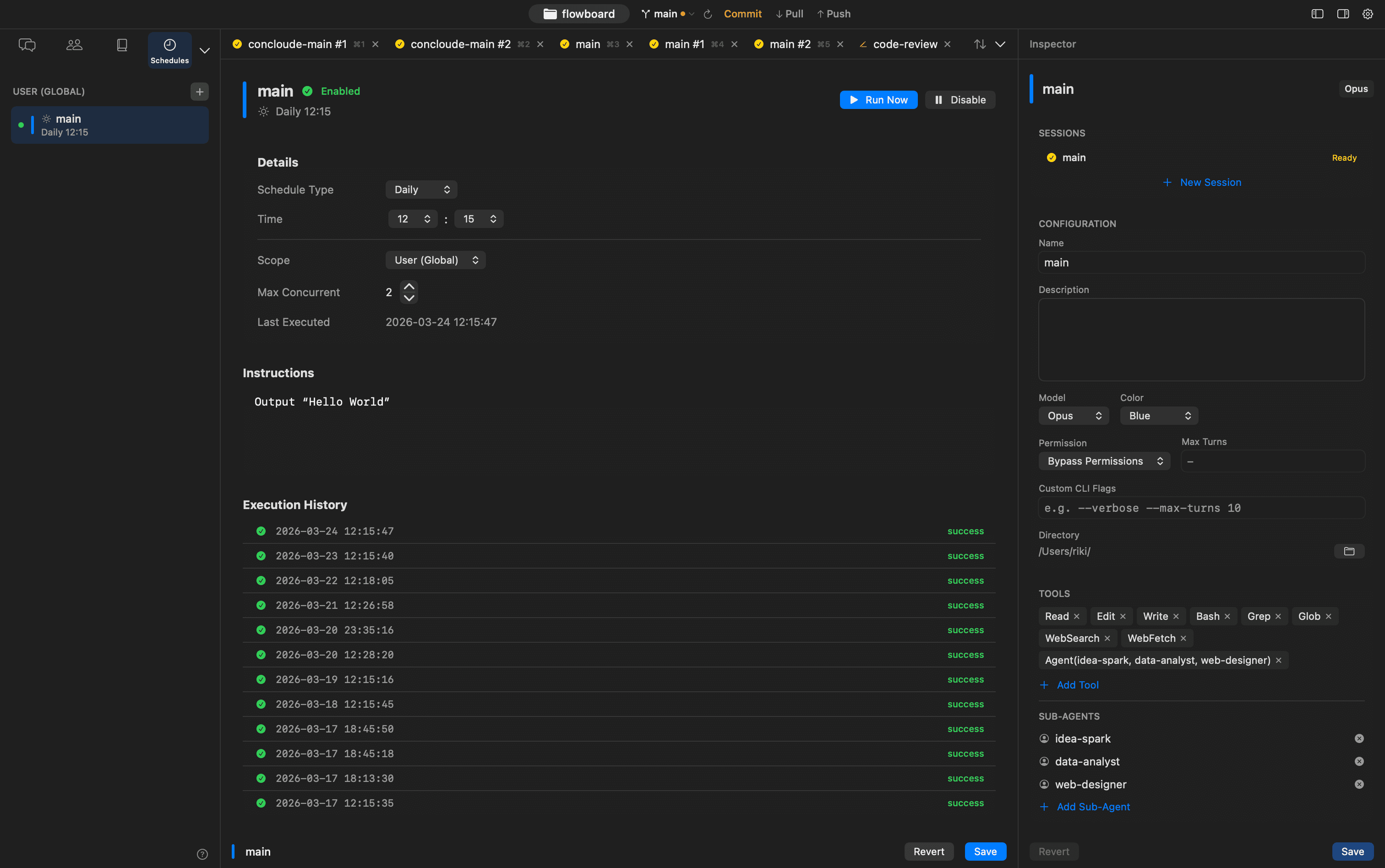
Open the schedule editor from the secondary tab in the tab bar to view and edit the following:
- Schedule type and execution timing
- Scope (User / Project)
- Maximum concurrent sessions
- Prompt (instructions)
- Last execution time
- Last error message (only when an error occurred)
- Execution history (last 20 entries) — status (success/failure/skipped), timestamp, and error details for each run
Management Operations
The following operations are available in the schedule list or schedule editor in the inspector:
- Run Now — Execute the schedule immediately
- Enable / Disable — Toggle the schedule on or off
- Edit — Open the schedule editor
- Delete — Delete the schedule
Storage Locations
- User scope:
~/.claude/schedules.json - Project scope:
{project}/.claude/schedules.json - Execution history:
~/Library/Application Support/Conclawd/schedule_history.json(up to 100 entries)
Concurrency Control
Each schedule has a maxConcurrentSessions setting (default: 3). If the number of active sessions launched by the same schedule reaches this limit, new executions are skipped. The inspector displays an active session count badge next to each schedule.