Sessions
Launch, manage, and review session history
Session Types
| Type | Description | Tab Icon |
|---|---|---|
| Agent Session | Launches a defined agent. Supports memory injection and resume | ⚡ (running) / ✓ (waiting) / ⏹ (stopped) |
| Standalone | Launches Claude Code CLI directly without an agent | Same as above |
| Scheduled Session | Sessions automatically launched by schedule configuration | Marked with 🕐 |
Starting a New Session
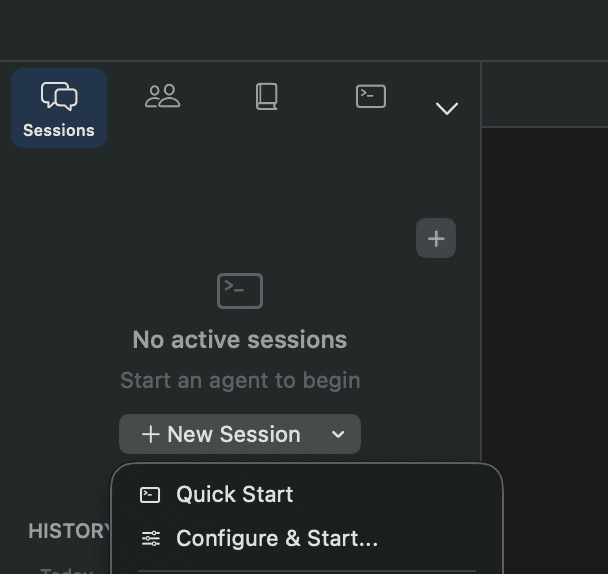
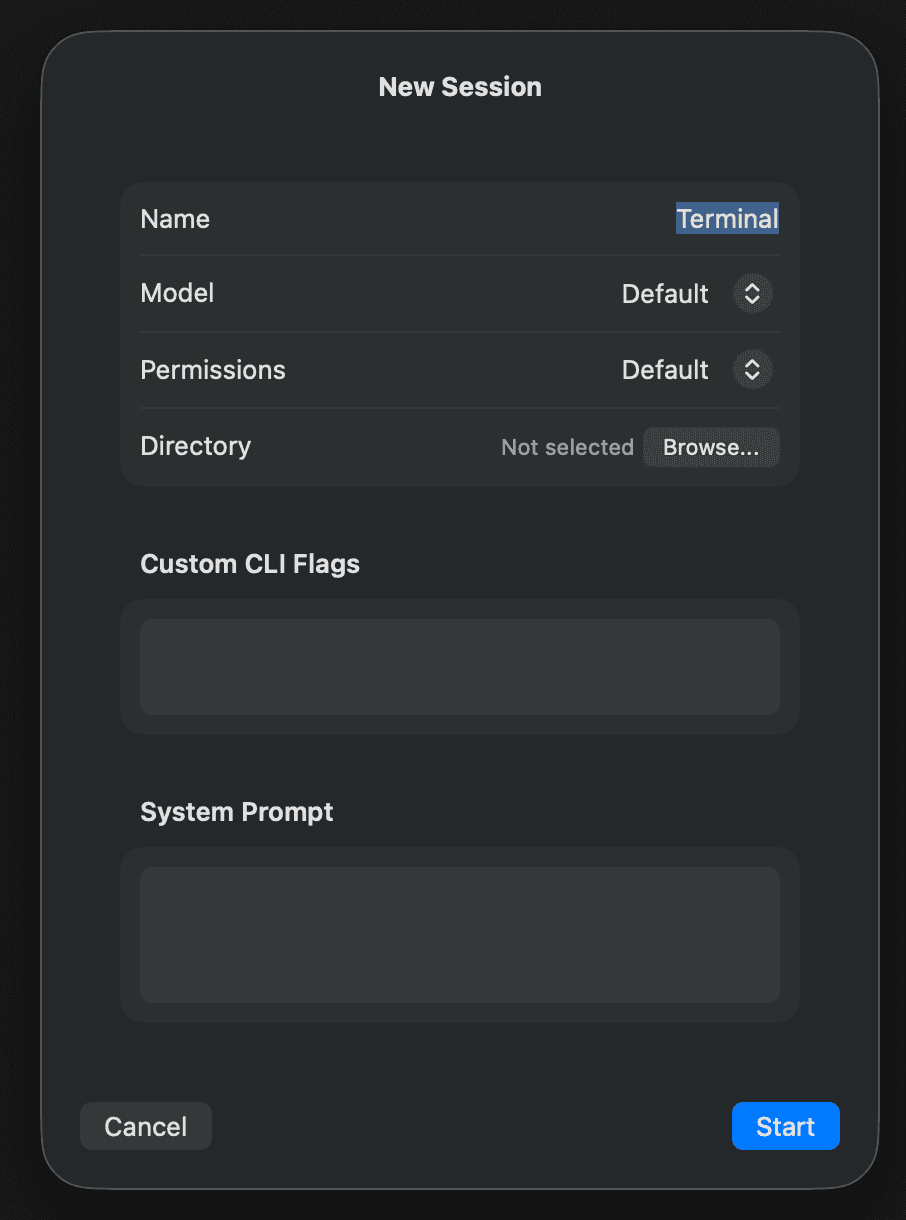
Open the New Session sheet from the + button at the top of the sidebar. You can configure the following options:
- Session Name — Name displayed on the tab (default: "Terminal")
- Model — inherit (default), Haiku, Sonnet, Opus, or custom model ID
- Permission Mode
default— Shows a confirmation prompt when editing filesacceptEdits— Automatically approves file editsplan— Presents a plan before editingbypassPermissions— Skips all permission checks
- Working Directory — The directory where the session runs
- System Prompt — Custom instructions (standalone sessions only)
- Custom Flags — Additional flags passed directly to the CLI (e.g.,
--verbose --max-turns 10)
Tab Bar Operations

- ⌘1–⌘9 — Switch to tabs 1–9 with shortcuts
- Double-click — Rename the tab
- Drag — Reorder tabs (when tab sorting is off)
- Right-click — Context menu (rename, resume, share context, duplicate, close)
When there are multiple sessions for the same agent, a number like #1, #2 is appended to the tab name.
Session Status
- Running — The agent is processing. A pulse animation appears on the tab icon
- Waiting for Input — Automatically transitions after 2.5 seconds of no shell output
- Stopped — The process has terminated
Session History and Resume
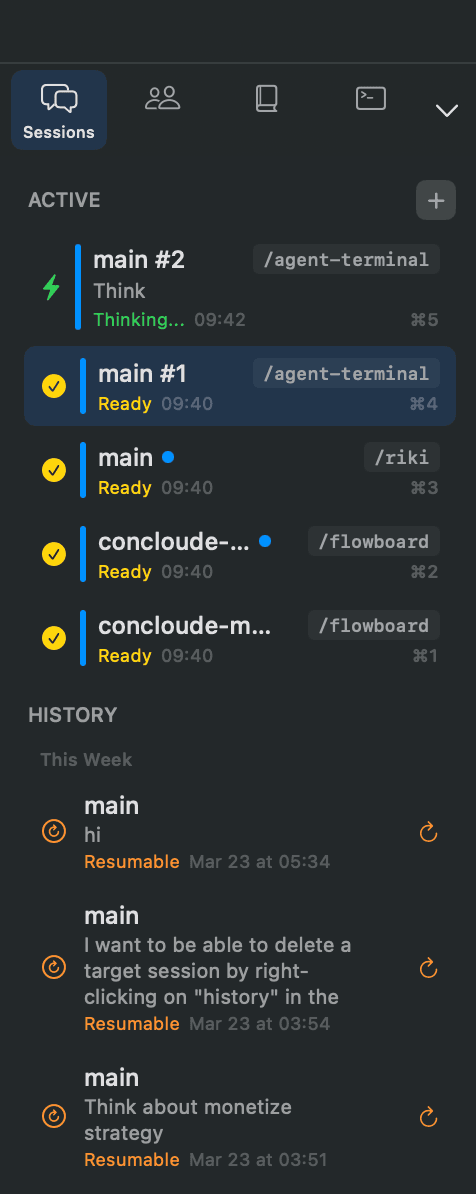
The "History" tab in the sidebar displays past sessions grouped by time period (today, yesterday, this week, last week, and older).
- Resumable mark (↻) — Sessions with a Resume ID can be resumed
- Search — Filter by agent name
- Show resumable only — Toggle to show only resumable sessions
- Abnormal exit mark (⚠️) — Displayed when a session did not terminate normally due to an app crash, etc.
History is stored in ~/Library/Application Support/Conclawd/session_history.json with a maximum of 500 entries. Writes are atomic (via a temporary file), and a backup file (.bak) is automatically created.
Context Sharing
You can transfer the shell content of one session to another. Right-click a tab → Share Context, select the target session, and the shell text will be pasted.
Concurrent Session Limits
You can limit the maximum number of concurrent sessions in settings (default: unlimited). When the limit is reached, launching new sessions will be blocked.