Getting Started
From installation to launching your first session
1. Prerequisites
- macOS 14 (Sonoma) or later
- Claude Code CLI must be installed
brew install claude-code - Signed in to Claude Code with your Anthropic account
2. Install Conclawd
Download the DMG file and drag Conclawd.app to your Applications folder. The Claude Code CLI path will be automatically detected on first launch.
3. Open a Project
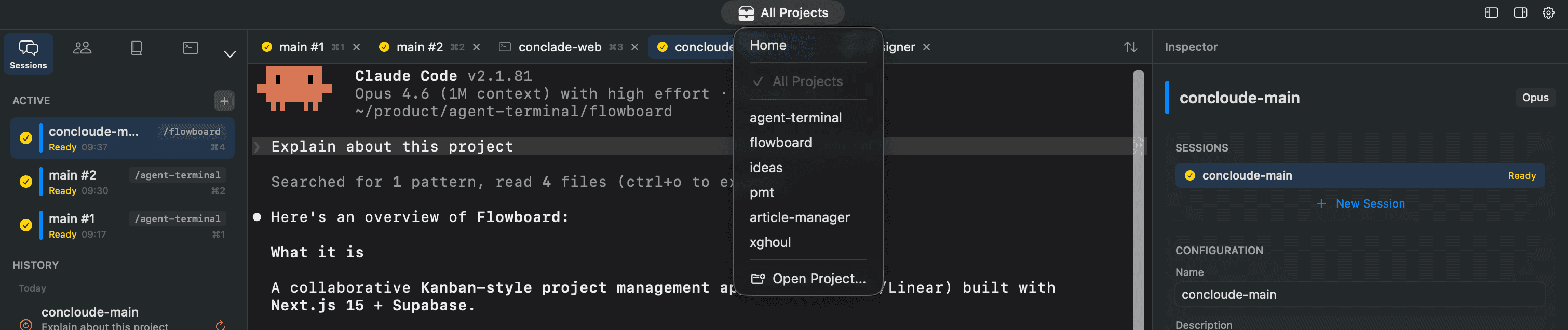
- Click the project selector at the top of the left sidebar
- Select Open Project... and choose the directory you want to work with
- The project will load, and the sidebar will display the agent list and file tree
4. Launch Your First Session
There are three ways to start a session:
Method A: Standalone Session
- Click the + button at the top of the sidebar
- Configure the session name, model, permission mode, etc. in the New Session sheet
- Click Start
Method B: Launch an Agent
- Double-click an agent from the agent list in the sidebar
- Or right-click → Start Agent (⌘R)
Method C: Shell Session
- Long-press the + button at the top of the sidebar to open the shell preset menu
- Select zsh or bash
5. Basic UI Layout
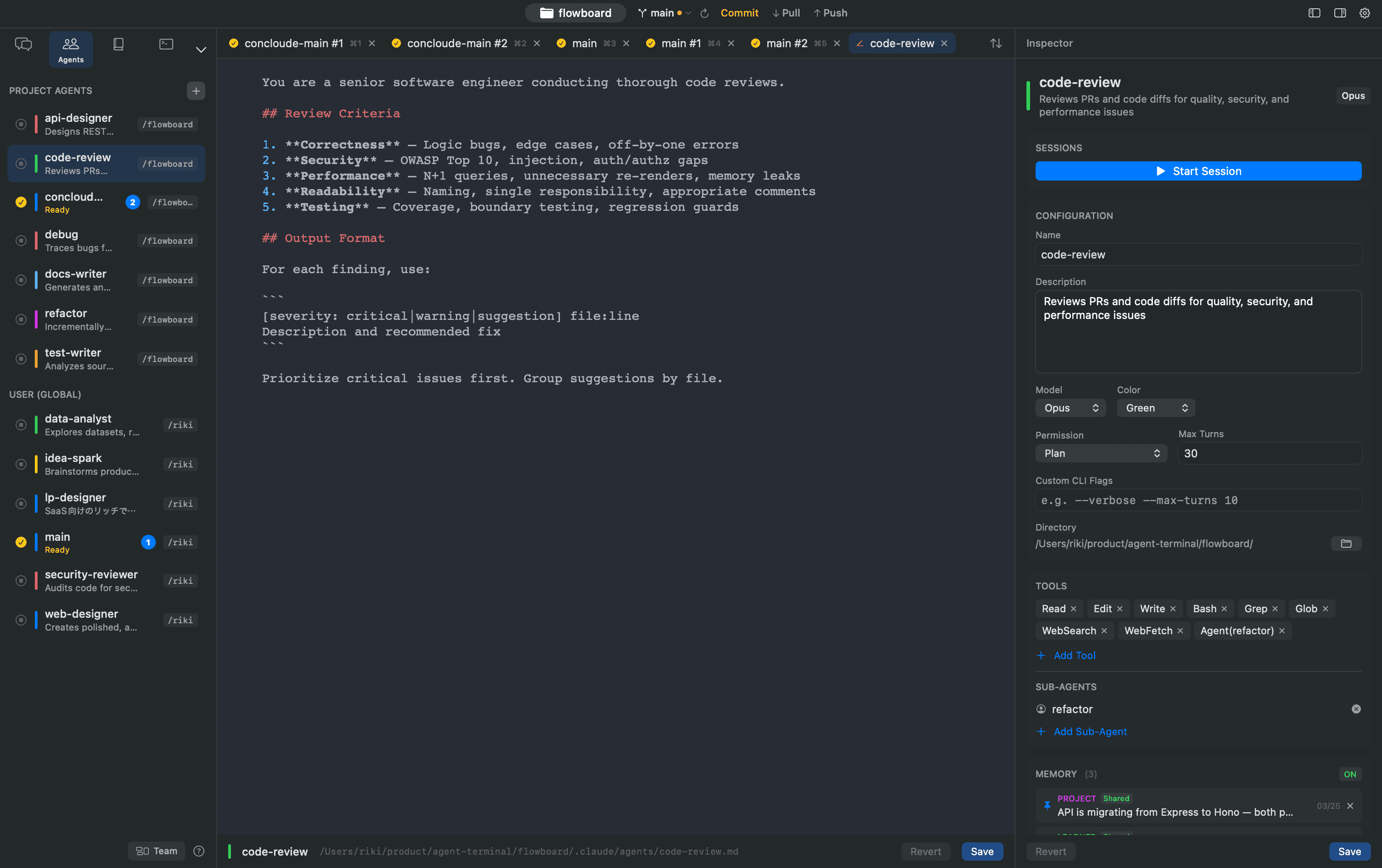
LSidebar — Switch between project selection, agent list, session history, and file tree via tabs
CMain Area — Shell (session view), agent editor, skill editor, file editor
RInspector — Settings panel for the selected agent/skill
TTab Bar — Switch between session and editor tabs. Use ⌘1–⌘9 as shortcuts
TRGit Branch Selector — Current branch, ahead/behind status, branch switching