Skills
Create and manage reusable knowledge packages
What are Skills?
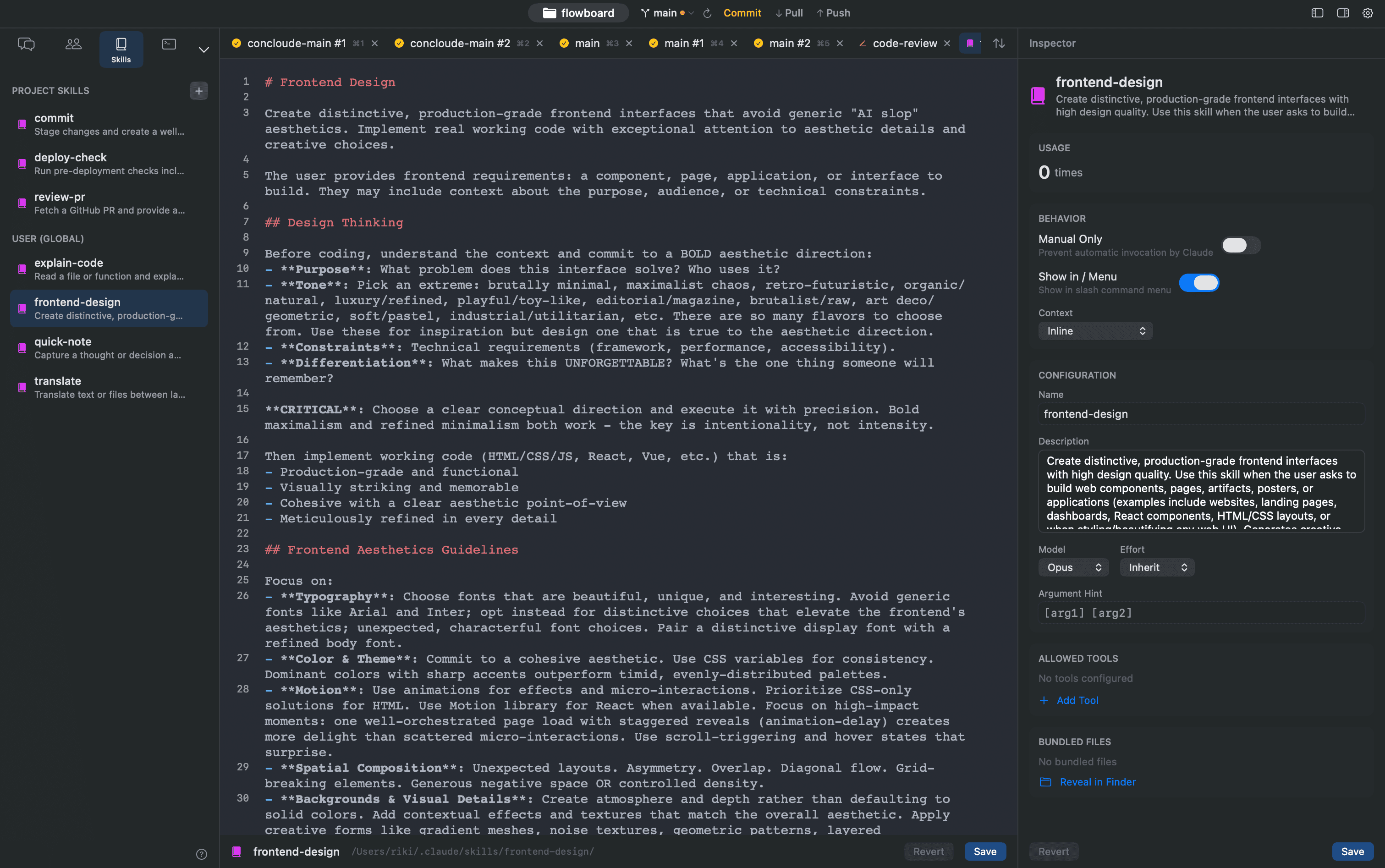
Skills are reusable packages that provide specific knowledge and workflows to Claude Code. You write knowledge in a SKILL.md file and can bundle scripts and reference files in the same directory. During a Claude Code session, skills can be invoked manually with /skill-name or triggered automatically by matching the description.
File Structure
Skills are managed per directory, and SKILL.md is the required file:
.claude/skills/my-skill/
├── SKILL.md           # メインのスキル定義(必須)
├── scripts/           # スクリプトファイル
│   └── setup.sh
├── references/        # リファレンスドキュメント
│   └── api-spec.json
└── assets/            # その他のアセット
    └── template.txt
SKILL.md consists of YAML frontmatter + Markdown body:
---
name: my-skill
description: "APIクライアントのコード生成スキル"
sortOrder: 0
---

このスキルはOpenAPI仕様からTypeScriptのAPIクライアントを
生成するためのガイドラインを提供します。

## 手順

1. OpenAPI仕様を読み込む
2. エンドポイントごとに型定義を生成
3. ...
Storage Locations
| Scope | Path | Sharing |
|---|---|---|
| Project | {project}/.claude/skills/{name}/SKILL.md | Shareable via Git |
| User | ~/.claude/skills/{name}/SKILL.md | Shared across all projects |
Names are automatically sanitized (lowercased, spaces converted to hyphens, only alphanumeric characters and hyphens retained).
Configuration Fields
| Field | Type | Description |
|---|---|---|
name | string | Skill name (also used as the directory name) |
description | string | Description (also used for auto-trigger matching) |
sortOrder | int | Display order in the sidebar (default: 0) |
Creating Skills
There are two ways to create a skill.
Method A: AI Creation (Recommended)
Click the + button at the top of the skill list in the sidebar and select AI Create. Describe the skill you want in natural language, and AI will automatically generate the name, description, and SKILL.md content. After generation, you can freely adjust it in the editor or inspector.
Method B: Manual Creation
- Click the + button at the top of the skill list in the sidebar, then select Manual Create
- Select the scope (User / Project)
- Enter a name and description
- Click Create
Editing in the Editor
Select a skill in the sidebar to open the skill editor tab in the tab bar. You can directly edit the Markdown content of SKILL.md with syntax highlighting in the center pane. Press ⌘S to save, or Revert to discard unsaved changes.
Editing in the Inspector
Select a skill in the sidebar to display the inspector panel on the right. It consists of the following sections:
- Settings — Edit name and description
- Bundle Files — List and browse related files. Click to display contents in the center pane
After making changes, click the Save button to save to SKILL.md. Use Revert to undo unsaved changes.
Duplicate and Delete
Right-click a skill in the sidebar to:
- Duplicate(⌘D) — Create a copy in user global, the current project, or another project
- Delete — Delete the entire skill directory after a confirmation dialog
Bundle Files
Files other than SKILL.md within the skill directory are automatically recognized as "bundle files".
- Text files can be edited inline
- Binary files display only the filename
- Displayed with icons and colors based on file extension
- Reveal in Finder opens the directory in Finder
External Editor Integration
Skill editor files and bundle files can also be opened in a configured external editor (VS Code, Cursor, etc.). An "Open in External Editor" button is displayed on each file row in the inspector.