Shell & Editor
Integrated shell and file editor
Shell
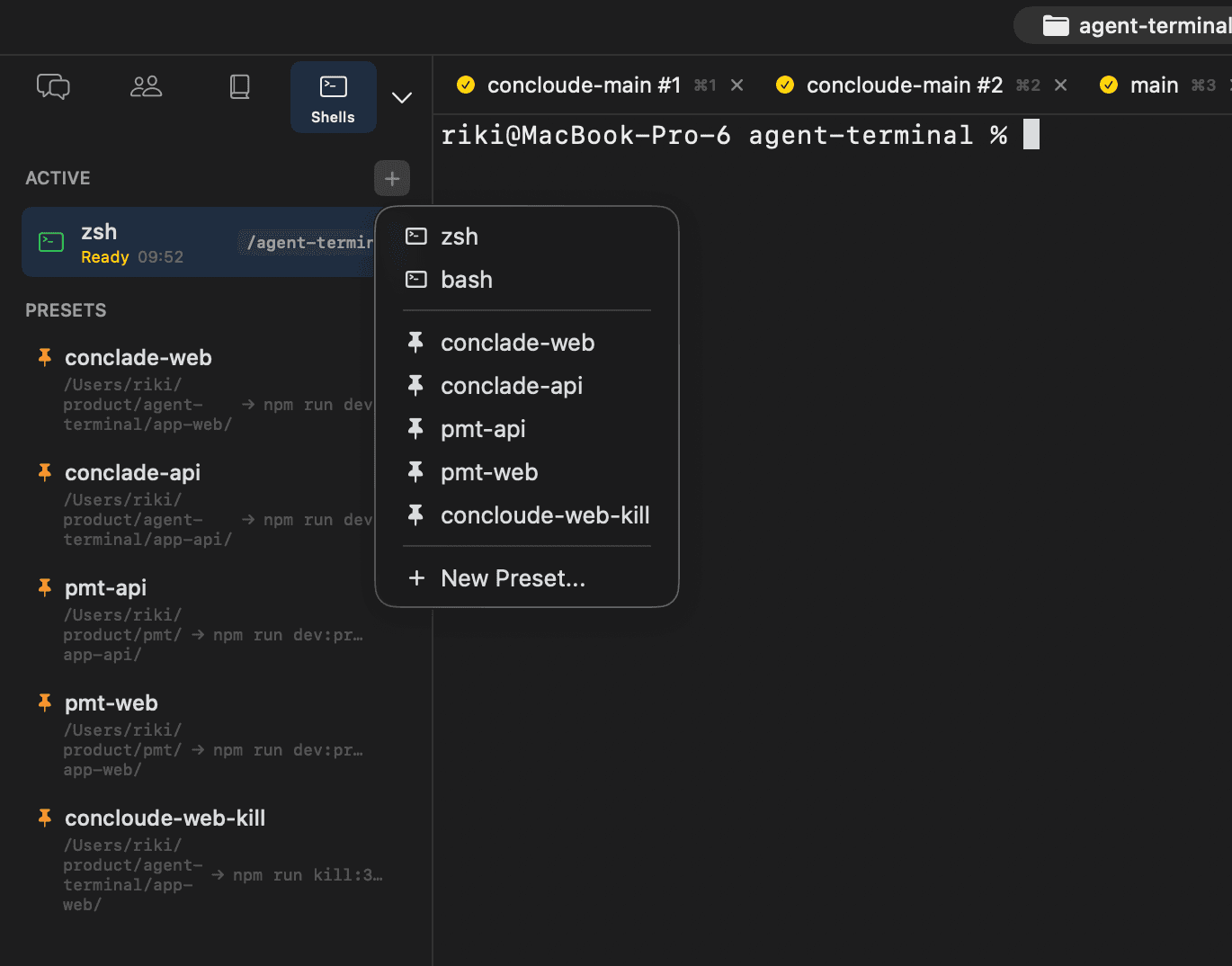
Conclawd's shell is a native emulator based on SwiftTerm. Both Claude Code sessions and shell sessions (zsh/bash) run on this shell.
IME Support
Full support for Japanese input (IME). Text being composed is displayed as an overlay near the cursor, and is sent to the shell when the conversion is confirmed. Pressing Enter during composition does not submit.
File Drag & Drop
Drag and drop a file onto the shell to input its file path. You can also drag files from the sidebar file tree.
Image Paste
When you paste with an image on the clipboard:
- Images copied as files: the file path is input
- Screenshots, etc. (no file URL): saved to a temporary file (
/tmp/AgentTerminal/) and its path is input
Supported formats: PNG, JPG, JPEG, GIF, WebP, BMP, TIFF, SVG
Scroll Position Retention
While scrolled back in the shell, the scroll position is maintained even when new output arrives. Pressing Enter automatically scrolls to the bottom.
File Attachment
Click the attachment button at the bottom right of the shell to open a file picker, select multiple files, and input their paths.
File Editor
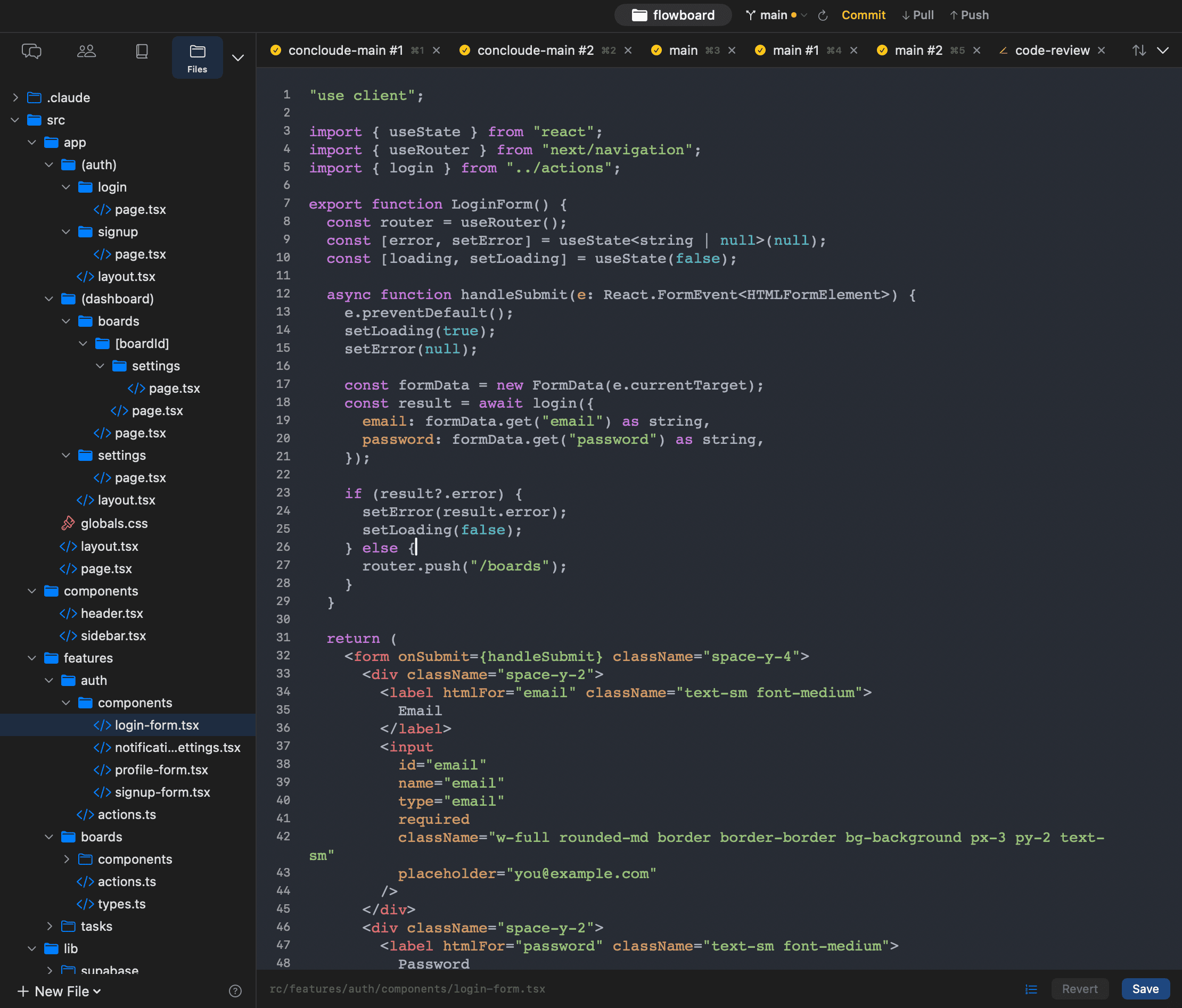
Click a file in the file tree or select a bundle file from an agent/skill to open the file editor with syntax highlighting.
Features
- Syntax highlighting — Language detection based on file extension (Highlightr-based)
- Line numbers — Toggle to show/hide
- Word wrap — Toggle to enable/disable wrapping
- Save (⌘S) — Save the file to disk
- Revert — Discard unsaved changes and revert to the on-disk content
Change Tracking
Files with unsaved changes display a blue dot indicator on the tab. The status bar at the bottom of the editor shows the file path (relative to the project) and Revert / Save buttons.
Keyboard Shortcuts
| Shortcut | Action |
|---|---|
| ⌘1 〜 ⌘9 | Switch to tab 1-9 |
| ⌘W | Close current tab |
| ⌘S | Save editor content |
| ⌘R | Launch selected agent |
| ⌘D | Duplicate selected agent |